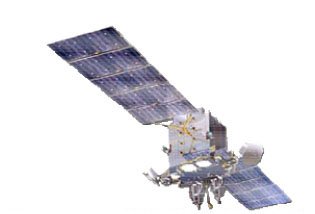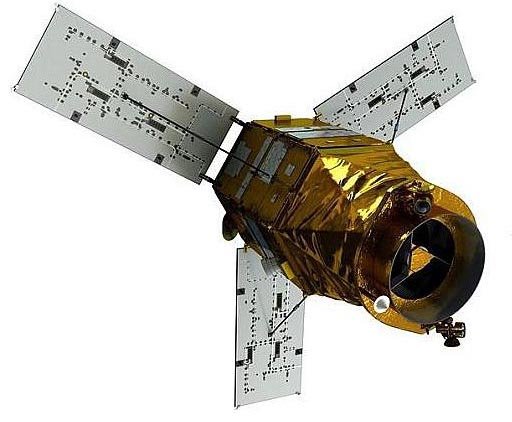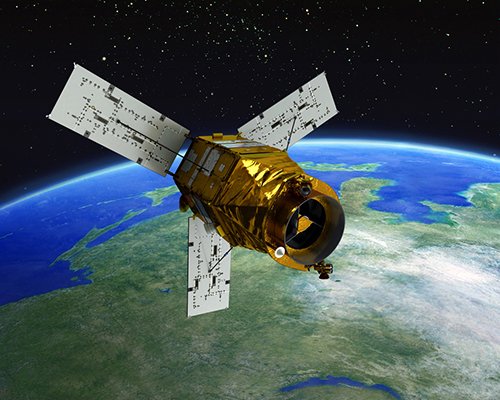
WorldView-3

(30cm)

Discover what’s possible.

Get a complimentary consultation today.

WorldView-3 Satellite Sensor

(30cm)

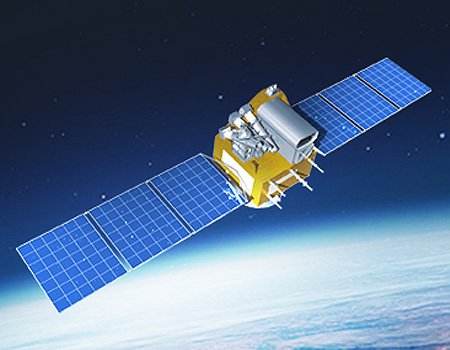
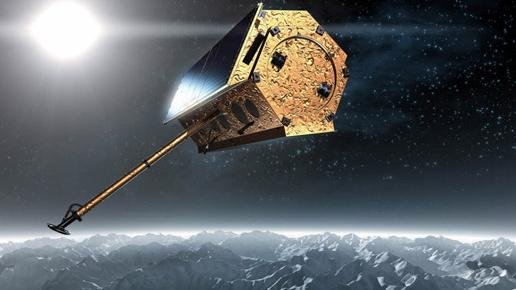
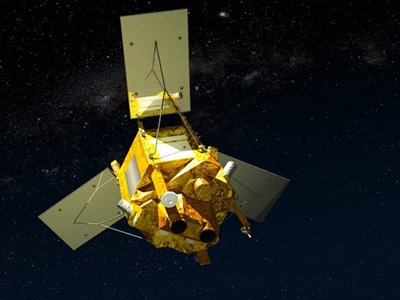
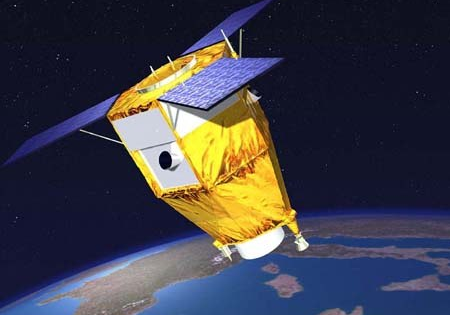
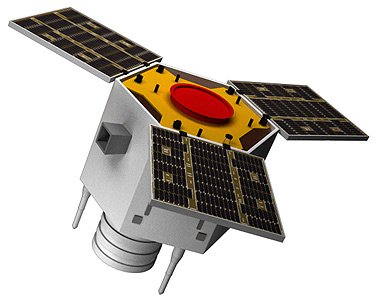
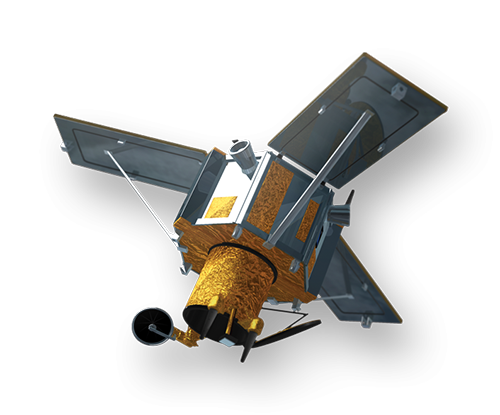
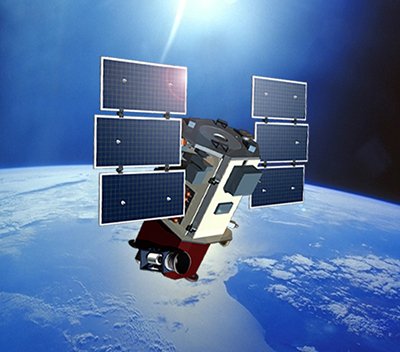
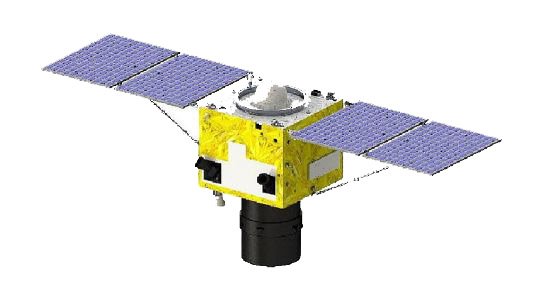
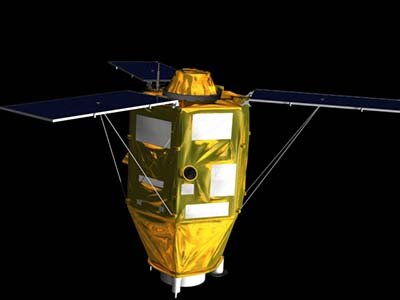
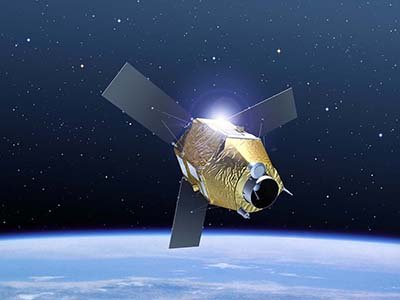
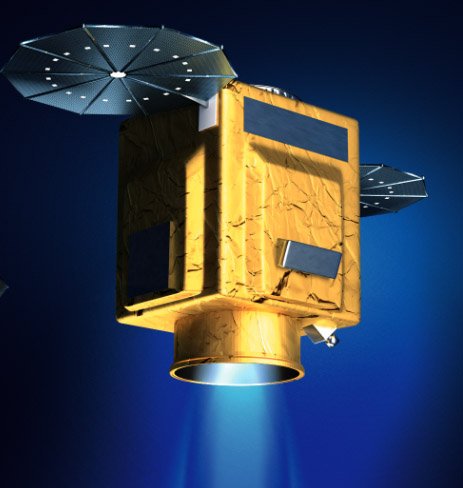
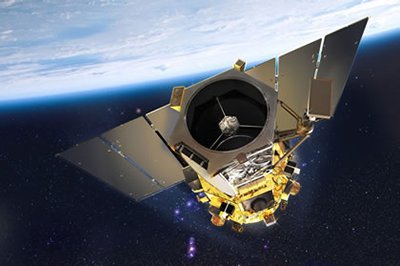
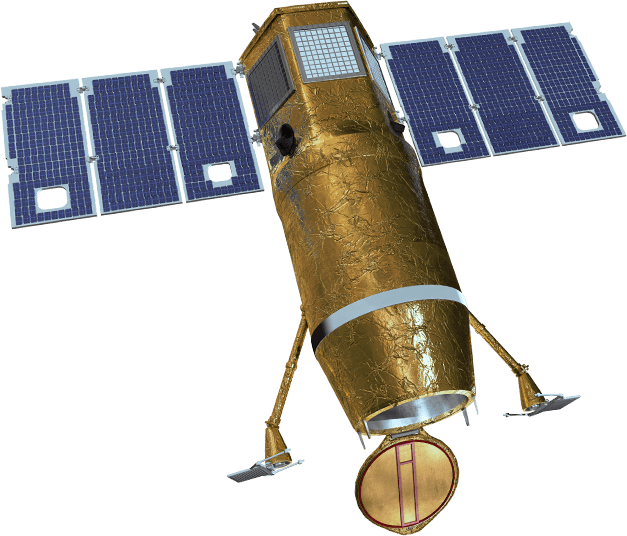
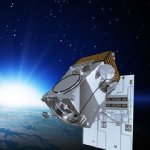
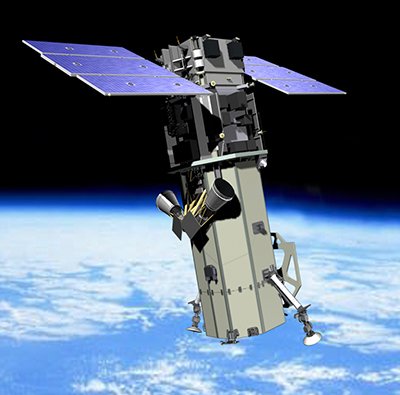
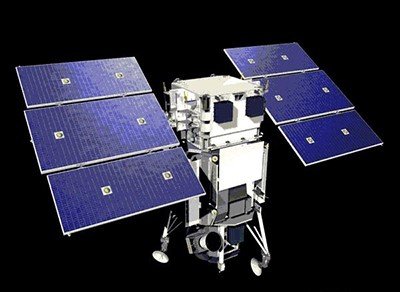
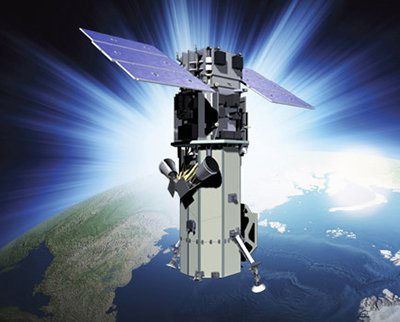
The WorldView-3 satellite sensor was licensed by the National Oceanic and Atmospheric Administration (NOAA) to collect in addition to the standard panchromatic and multispectral bands, eight-band short-wave infrared (SWIR) and 12 CAVIS imagery. The WorldView-3 satellite was successfully launched on August 13, 2014.

WorldView-3 is the first multi-payload, super-spectral, high-resolution commercial satellite sensor operating at an altitude of 617 km. WorldView-3 satellite provides 30cm panchromatic resolution, 1.24 m multispectral resolution, 3.7 m short wave infrared resolution (SWIR), and 30 m CAVIS resolution. The satellite has an average revisit time of <1 day and is capable of collecting up to 680,000 km2 per day.

WorldView-3 Satellite Sensor (30cm)
Copyright © VANTOR. All rights reserved.

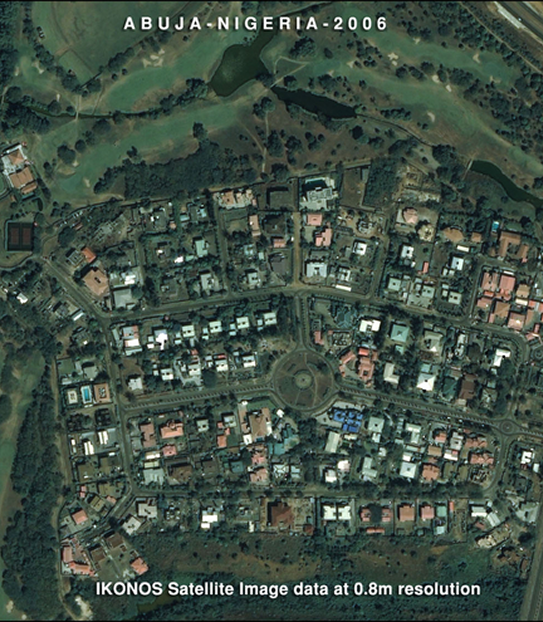
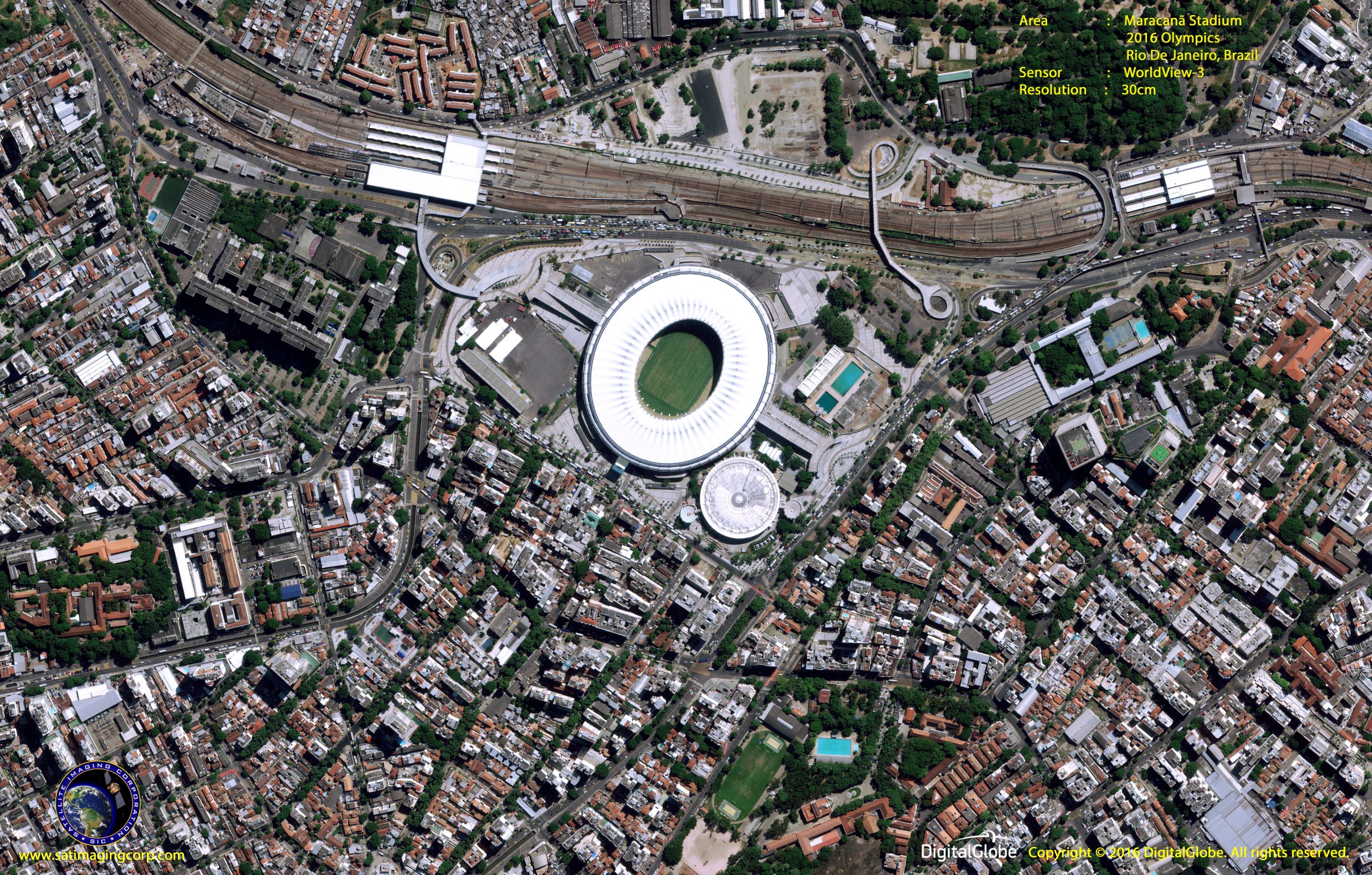
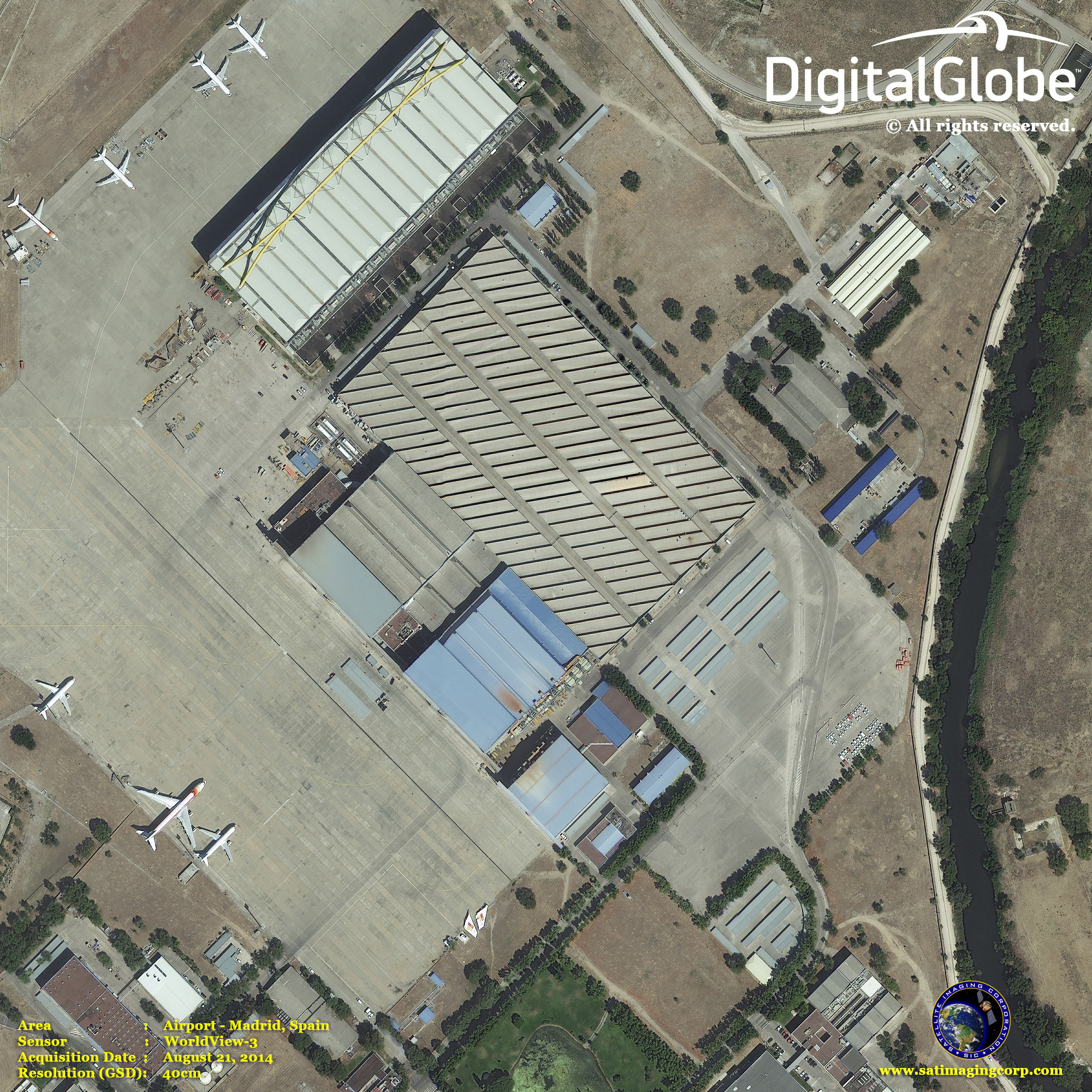
WorldView-3 30cm Resolution Data

WorldView-3 satellite bears a strong resemblance to WorldView-2 launched on October 8, 2009, in terms of its performance characteristics. The WorldView-3 satellite sensor benefits from significant improvements including cost savings, risk reduction, and faster delivery for its customers.

Copyright © VANTOR. All rights reserved.

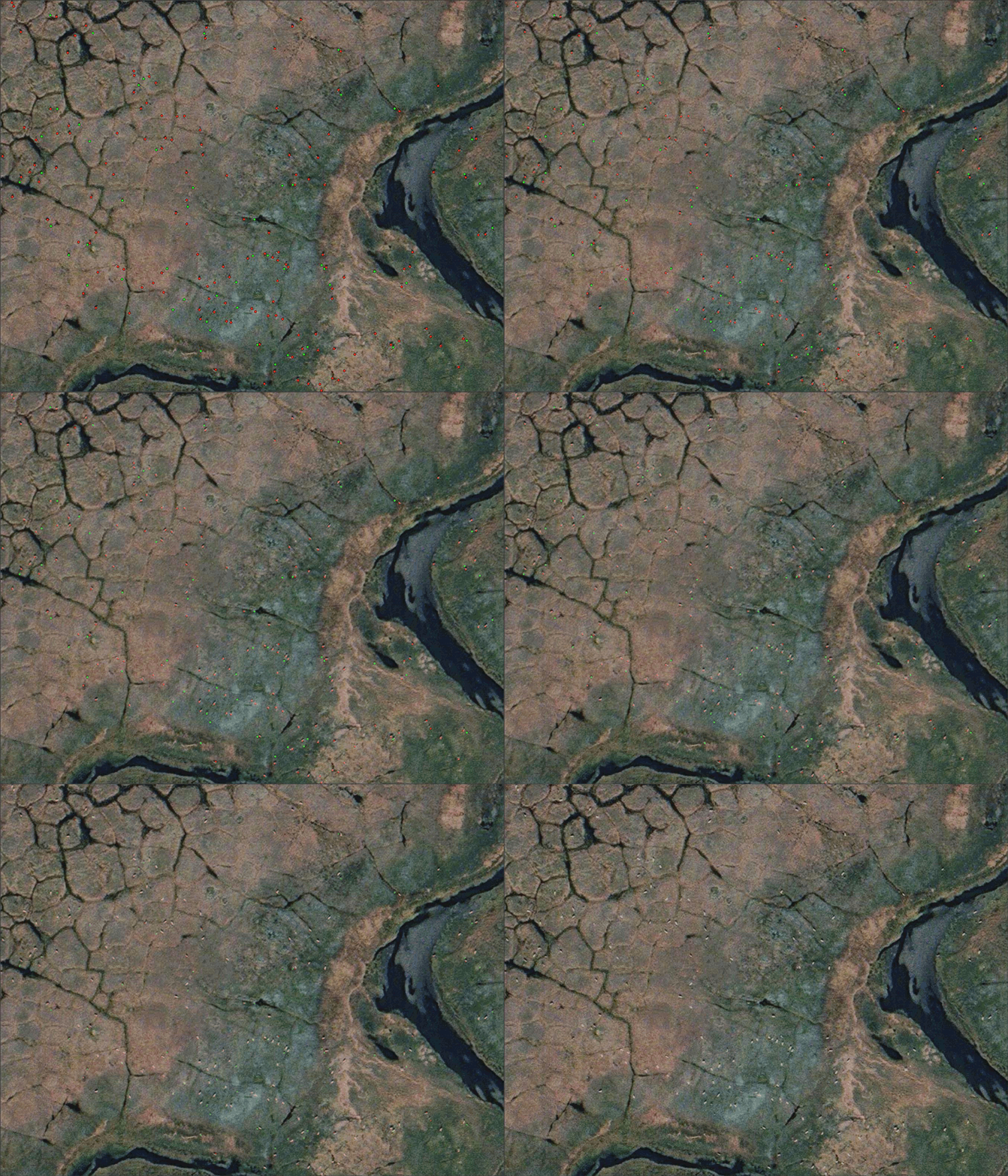
Wildlife Monitoring and Tracking - Caribou, Alaska

Click image to view animation.
Copyright © VANTOR/processed by Satellite Imaging Corporation. All rights reserved.

WorldView-3 Satellite Map Forest Fires Animation - Canada

Click image to view animation.
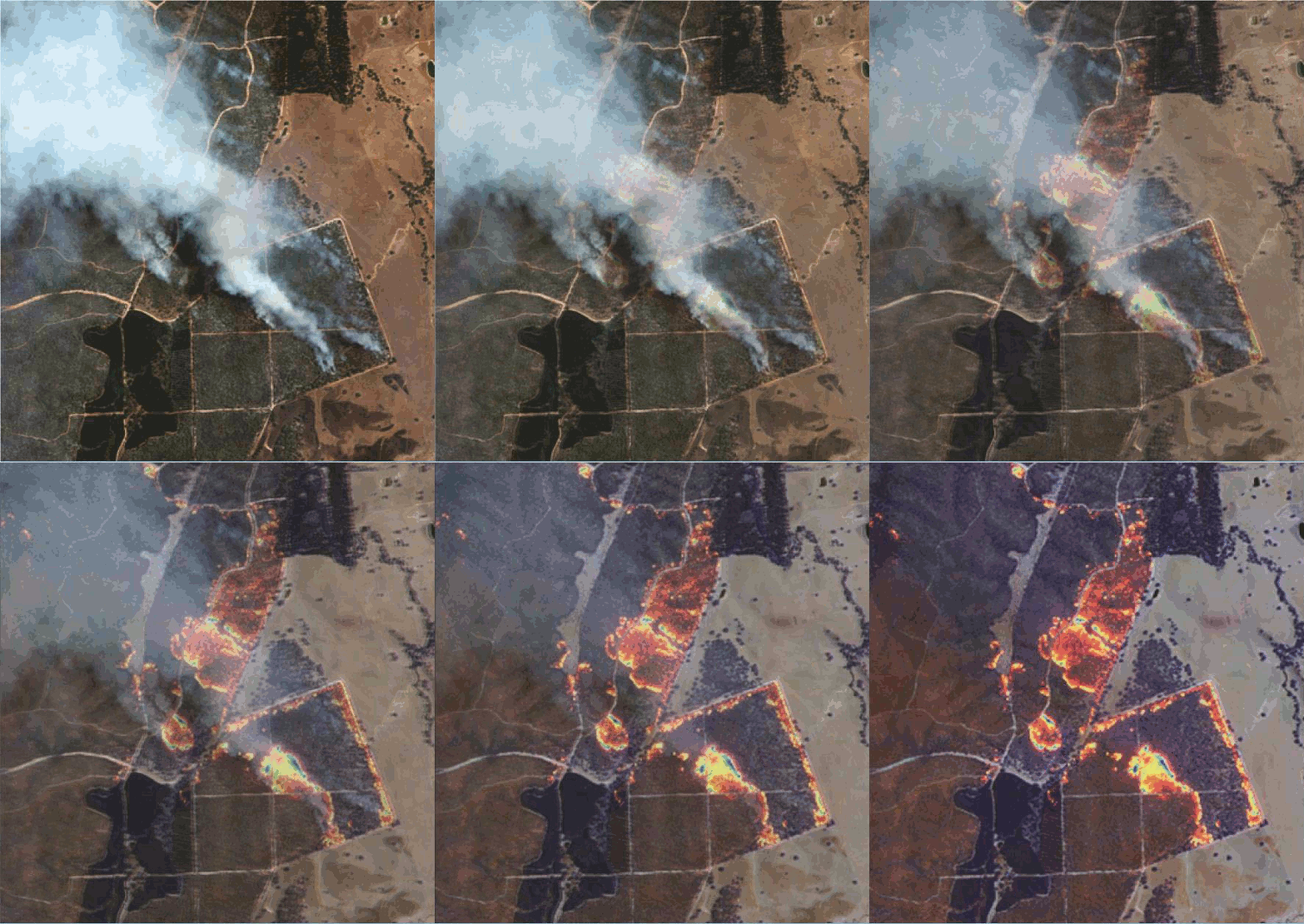
Copyright © VANTOR/processed by Satellite Imaging Corporation. All rights reserved.

Sample Images

WorldView-3 Satellite Image Gallery

* Click on thumbnail to view in full resolution.

WorldView-3 Satellite Sensor Specifications

Launch Date

August 13, 2014

Orbit

Altitude: 617 km

Type: SunSync, 10:30 am descending node

Period: 97 min.

Life

Spec Mission Life; 7.25 years

Estimated Service Life: 10 to 12 years

Spacecraft Size, Mass and Power

Size: 5.7 m (18.7 feet) tall x 2.5 m (8 feet) across, 7.1 m (23 feet) across the deployed solar arrays
Mass: 2800 kilograms (6200 pounds)
Power: 3.1 kW solar array, 100 Ahr battery

Sensor Bands

Panchromatic: 450–800 nm

8 Multispectral:
Coastal: 397–454 nm Red: 626–696 nm
Blue: 445–517 nm Red Edge: 698–749 nm
Green: 507–586 nm Near-IR1: 765–899 nm
Yellow: 580–629 nm Near-IR2: 857–1039 nm

8 SWIR Bands:
SWIR-1: 1184–1235 nm SWIR-5: 2137–2191 nm
SWIR-2: 1546–1598 nm SWIR-6: 2174–2232 nm
SWIR-3: 1636–1686 nm SWIR-7: 2228–2292 nm
SWIR-4: 1702–1759 nm SWIR-8: 2285–2373 nm

12 CAVIS Bands:
Desert Clouds: 405–420 nm Water-3: 930–965 nm
Aerosol-1: 459–509 nm NDVI-SWIR: 1220–1252 nm
Green: 525–585 nm Cirrus: 1365–1405 nm
Aerosol-2: 635–685 nm Snow: 1620–1680 nm
Water-1: 845–885 nm Aerosol-3: 2105–2245 nm
Water-2: 897–927 nm Aerosol-3 P: 2105–2245 nm

Sensor Resolution (or GSD, Ground Sample Distance: off-nadir is geometric mean)

Panchromatic nadir: 0.31 m
20 degrees off-nadir: 0.34 m
Multispectral nadir: 1.24 m
20 degrees off-nadir: 1.38 m
SWIR nadir: 3.70 m
20 degrees off-nadir: 4.10 m
CAVIS nadir: 30.00 m

Dynamic Range

11-bits per pixel Pan and MS; 14-bits per pixel SWIR

Swath Width

At nadir: 13.1 km

Attitude Determination and Control

Type: 3-axis stabilized
Actuators: Control Moment Gyros (CMGs)
Sensors: Star trackers, precision, IRU, GPS

Pointing Accuracy and Knowledge

Accuracy: <500 m at image start/stop
Knowledge: Supports geolocation accuracy below

Retargeting Agility

Time to slew 200 km: 12 seconds

Onboard Storage

2199 Gb solid state with EDAC

Communications

Image & Ancillary: 800 & 1200 Mbps X-band
Housekeeping: 4, 16, 32 or 64 kbps real-time, 524 kbps stored, X-band
Command: 2 or 64 kbps S-band

Max Contiguous Area Collected in a Single Pass (30° off-nadir angle)

Mono: 66.5 km x 112 km (5 strips)
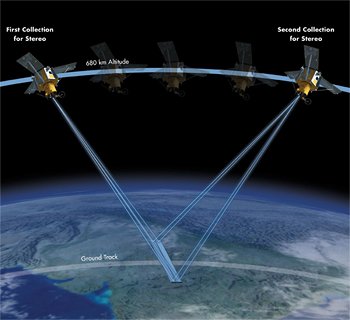
Stereo: 26.6 km x 112 km (2 pairs)

Revisit Frequency(at 40°N Latitude)

1 m GSD: <1.0 day
4.5 days at 20° off-nadir or less

Geolocation Accuracy(CE90)

Predicted Performance: <3.5 m CE90 without ground control

Capacity

680,000 km2 per day
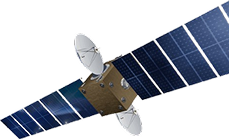
Satellite Sensor

IMAGING Corporation Satellite Sensors

Ready to get started?

Contact us for a custom imagery solution or request a quote

TESTIMONIALS

Stories & Experiences

Lorem ipsum dolor sit amet, consectetur adipiscing elit, sed do eiusmod tempor incididunt ut labore et dolore magna aliqua. Ut enim ad minim veniam, quis nostrud exercitation. 

FAQ’S

Frequently Asked Questions

How to find Geographic Coordinates in Google maps?

To find geographic coordinates in Google Maps, you can follow these steps:

  1. Open Google Maps in your web browser or on your mobile device.

  2. Search for the location you want to find the geographic coordinates for by entering the address, landmark, or name of the place in the search bar at the top of the page.

  3. Once the location is displayed on the map, right-click (or long-press on mobile) the exact point on the map where you want to find the coordinates. This will open a small menu.

  4. In the menu that appears, click on “What’s here?” or “What’s here? – Coordinates” option. On mobile devices, you may need to tap on the location marker first to reveal the menu options.

  5. A small information box will appear at the bottom of the screen, displaying the latitude and longitude coordinates of the selected point. The coordinates will be shown in decimal degrees format.

  6. You can click on the coordinates in the information box to expand it and see the coordinates in different formats, such as degrees, minutes, and seconds (DMS) or Universal Transverse Mercator (UTM) format.

To create a KML (Keyhole Markup Language) file in Google Earth, you can follow these steps:

  1. Download Google Earth Pro and Open on your computer.

  2. Navigate to the location or area you want to create a KML file for by using the search bar, zooming in/out, and panning on the map.

  3. Customize the view and layers in Google Earth Pro to include the specific data or elements you want to include in your KML file. This can include placemarks, paths, polygons, overlays, images, and more.

  4. Once you have set up the desired view and layers, go to the “Add” menu at the top of the screen and select the type of element you want to add (e.g., placemark, path, polygon, image overlay).

  5. Follow the prompts to add the specific element and provide the necessary information, such as location coordinates, name, description, and any additional properties or styling options.

  6. Repeat the previous step if you want to add more elements to your KML file.

  7. After adding all the desired elements, go to the “File” menu and select “Save Place As.”

  8. In the “Save Place As” dialog box, choose a location on your computer where you want to save the KML file.

  9. Specify the name of the KML file, ensuring it has the .kml extension (e.g., myfile.kmL), you may need to select KML as GoogleEarth defaults to KMZ formats.

  10.  Click the “Save” button to save the KMZ file to the specified location on your computer.

Ordering commercial high-resolution and medium-resolution satellite maps process:

  1. Identify your requirements: Determine the specific needs for the satellite maps, including the desired resolution, geographic coverage, acquisition date, and any additional specifications such as spectral bands or cloud cover constraints.

  2. Contact Us: Reach out to us to inquire about our imaging product and services. Provide us with the details of your requirements, including the area of interest, resolution, and any other specifications.

  3. If there is high urgency for imagery, please let us know that this is a time sensitive project. Any project deadlines should be included with your initial contact.

  4. Request a quote: Ask for a formal quote for the satellite maps you need. The quote should include information such as the cost, delivery timeline, licensing terms, and any additional services like data processing or analysis.

  5. Review the quote: Evaluate the quote provided by us and if needed, we can negotiate the terms, pricing, or any specific requirements that may not be fully covered.

  6. Confirm the order: Once you are satisfied with the quote and have reached an agreement, confirm your order. We will guide you through the necessary steps for payment and delivery.

  7. Receive the satellite maps: After the order is confirmed and payment is processed, you will receive the satellite map data in the specified format. This may include downloading the data from a secure portal or receiving physical media, depending on delivery method.

  8. Utilize the satellite maps: With the satellite maps that you receive, you can utilize it for your intended purposes, such as GIS data, 3D terrain maps, disaster, geospatial data, and other applications as needed.

Satellite map raw files refer to the unprocessed and unedited data captured by satellite sensors. These files contain the raw data received by the satellite sensors, including the reflected or emitted electromagnetic radiation from the Earth’s surface.

Satellite map raw files typically come in specialized formats specific to each satellite sensor or provider. These formats may include formats like GeoTIFF (georeferenced Tagged Image File Format) or ENVI (Environment for Visualizing Images). The raw files preserve the original sensor readings, which can include various spectral bands, radiometric information, and geometric parameters.

Raw files require processing to convert them into usable formats, such as georeferenced images or digital elevation model(DEM). Processing steps may involve radiometric and geometric corrections, atmospheric compensation, calibration, orthorectification, and mosaicking, among others.

Once processed, raw files can provide valuable information for various GIS data applications, including 3D terrain maps, agriculture production maps, vegetation maps, and disaster maps.

To download satellite maps from an FTP (File Transfer Protocol) server, you can follow these general steps:

  1. Obtain the FTP server information: Get the FTP server details from the satellite maps provider or the source you are accessing. This includes the FTP server address, username, password, and potentially the directory path to the imagery files.

  2. Choose an FTP client: Select an FTP client software or application that allows you to connect to the FTP server and perform file transfers. Some popular options include FileZilla, WinSCP, Cyberduck, or the built-in FTP functionality of certain web browsers.

  3. If you are unable to download an FTP client due to software locks, Windows has a built in FTP Protocol that can be accessed by copying the URL of the FTP server in your Windows File Explorer.

  4. Depending on the method to connect to the FTP, you will need credentials including a Username and Password to access these file.

  5. Most FTP clients will allow you to Copy and Paste or Drag and Drop the files from the client window to your local files.

Remember to comply with any terms and conditions associated with the satellite map data, including usage restrictions, licensing agreements, and any attribution requirements specified by the provider.

For any other questions or for a consultation, please contact us.

Scroll to Top