
- Satellite Imaging Corporation
Satellite Imaging
& Geospatial Intelligence
Delivering accurate, actionable data for environmental, industrial, and infrastructure use cases.
120K+ Users

120K+ Users

About Us
About Satellite Imaging Corporation
At Satellite Imaging Corporation (SIC), we have built our reputation on the quality and precision of the work we’ve delivered. From the retrieval of imaging data to the final image processing and spectral analysis, we understand your need for impeccable accuracy, image quality, and analysis. Whether your project involves mapping a city, planning a pipeline, or routing a railroad, our products are always delivered with above industry standards and accuracy, because we know that even the smallest inaccuracies can lead to increased project costs.
Consultancy
Ongoing Satellite remote sensing and GIS consultancy services are provided to our clients, including the set-up of reliable source coordinate databases in support of computerized mapping, exploration, and development of projects around the world and to clients implementing AI, ML, Computer Vision (CV) or GIS management systems, utilizing a variety of source data. For more information or for a consultation, please contact us.
Services
Satellite Imaging Corporation
1
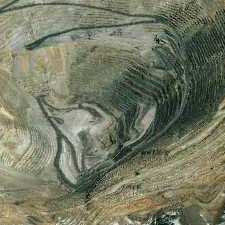
Mitigate business risks, accelerate pipeline planning, learn about the surface composition, and predict environmental impact using the solutions we have tailored to enhance mining and energy projects.
2
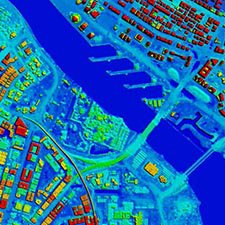
GIS technology solutions are used in a Computer Vision (CV) environment for mapping data. Artificial Neural Networks and deep learning. Artificial Intelligence (AI) technologies can process large amounts of data much faster and makes forecasting more accurate. AI management auditing and monitoring systems are used for various industries
3
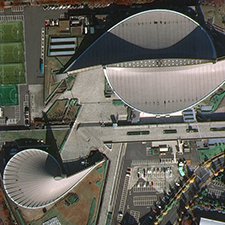
From construction site selection and evaluation to the assessment of existing structures, we have solutions designed to help facilitate every step of your project.
4
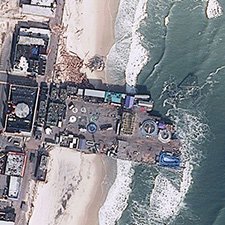
When time counts, you can rely on our satellite image data — collected before and after a natural or manmade disaster — to provide crucial insight for disaster response efforts and insurance operations.
5
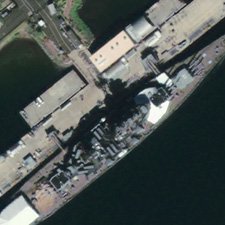
Defense agencies, military contractors, and law enforcement are continually faced with new challenges. We provide an unrivaled advantage when planning strategic and tactical operations, carrying out combat missions, and developing simulations.
6
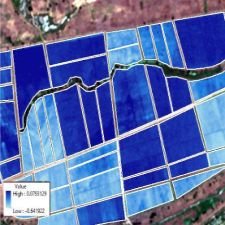
Remote sensing and Artificial Inteligence (AI) algorithms are used to monitor our environment, habitats, enhance coastal management, assess forests, and facilitate the development of agricultural resources. Our cost-effective satellite remote sensing services and AI processing, we can improve the quality of the results retrieved at a lower cost.
7
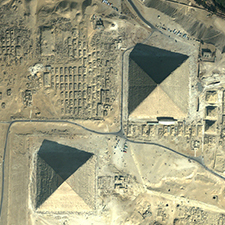
Identify archaelogical sites, visualize the effects of climate change, and monitor wildlife conservation efforts with our advanced remote sensing technology, including Artificial Neural Network (ANN) processing.
8
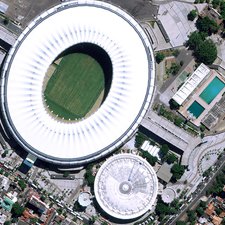
Get the stunning visual perspectives you need to captivate the audiences of your next news broadcast, science program, or Hollywood blockbuster.
SATELLITES OPERATED BY
AIRBUS
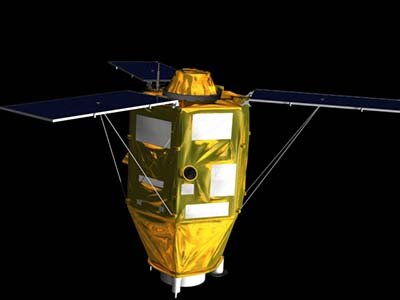
(0.5m)
Pleiades-1B Satellite Sensor (0.5m) Pleiades-1B satellite sensor was successfully launched on December 2, 2012. Built by AIRBUS Defence & Space, […]
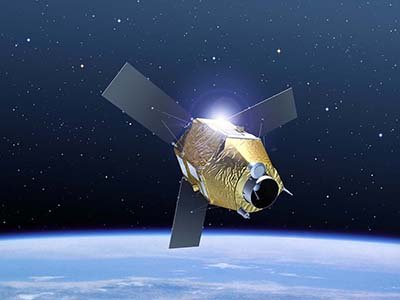
(0.5m)
Pleiades-1A Satellite Sensor (0.5m) AIRBUS Defence & Space Pleiades-1A satellite sensor was successfully launched on December 16, 2011, and provides […]
(30cm)
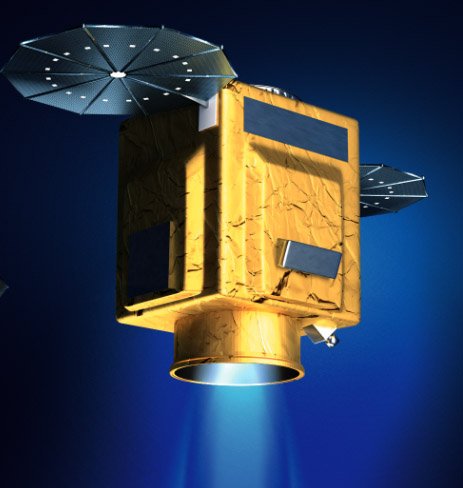
Pleiades Neo Satellite Constellation 30cm/HD15cm Latest Update: Pleiades Neo Next Satellite Addition to Constellation The Pleiades Neo Next satellite is […]
IMAGE OF THE DAY
Climate Change – Urban Flood Risk Management
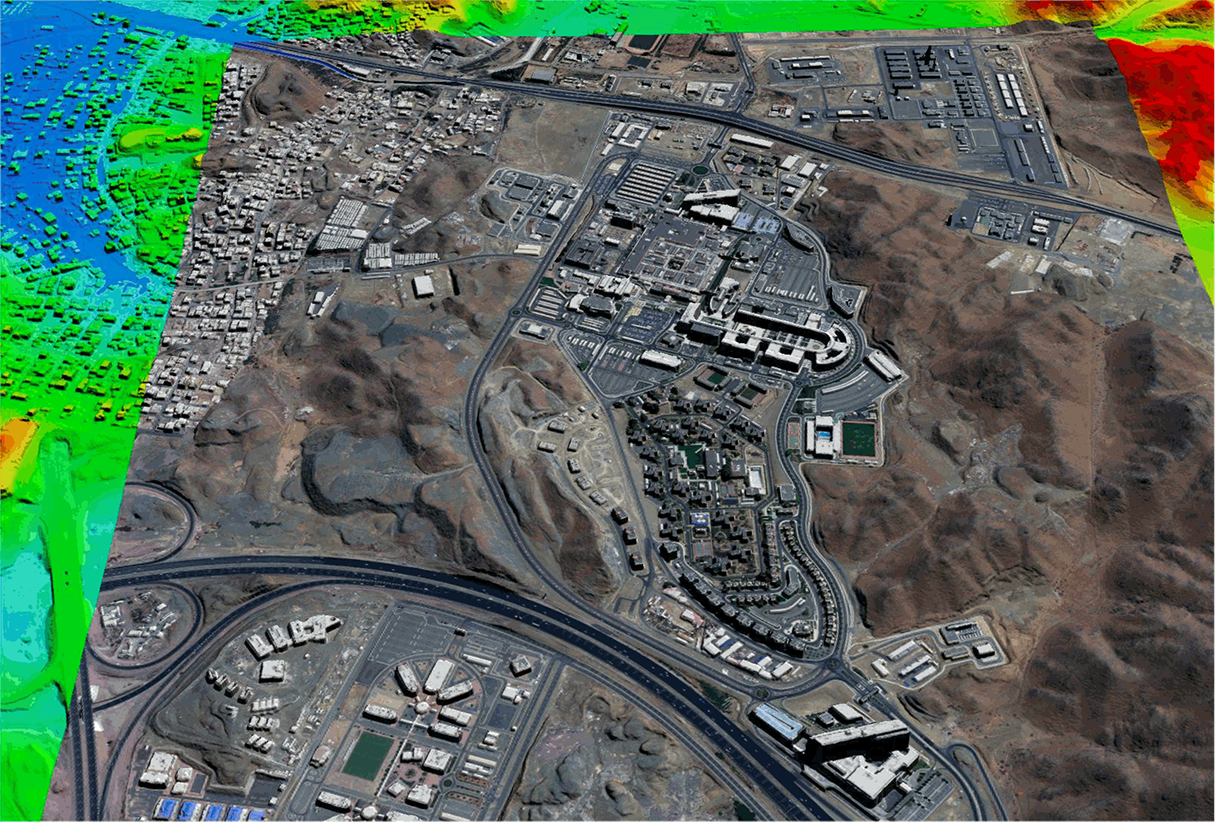
King Abdulaziz Medical City – Jeddah, Saudi Arabia – Copyright – 21AT
Animation produced from Tri-Stereo 30cm Satellite Imagery and 50cm HDTM with breaklines are used for hydrological modeling to support urban Flood Risk Management (FRM). Due to climate change, the 50cm HDTM supports hydrological modeling, flood forecasting, and management to identify areas susceptible to flooding and support an early warning system. High-Definition HD15cm satellite imagery is available for FRM and other applications.
Applications
Satellite Imaging Corporation
Satellite remote sensing applications have been supporting the Oil & Gas industry since the first optical satellite, obtaining information of earth land-cover, was launched in 1972. By utilizing spectral data, valuable terrain data became available for geological interpretation to plan the location of 2D seismic surveys and well locations. Some of the largest oil & gas fields were discovered that way.
Since then, satellite, aerial, and UAV remote sensing has become a cost-effective tool for the use of Artificial Intelligence (AI), Machine Learning (ML) algorithms, and Computer Vision (CV) management systems to assess the value of specific reservoirs, oil leak detection for on and offshore areas, environmental, and wildlife monitoring, and many other applications.
WorldView-3 Short Wave InfraRed (SWIR) with 8 spectral bands, and a spatial resolution of 3.7m, is one of the best Satellite sensors for geological interpretation, supporting mineral mapping to allow geologists and researchers to collect reflectance data and absorption properties of soils, rock, and vegetation. By leveraging wavelengths and spectral reflectance data, invisible to the human eye, spectral signatures, can be established for mineral traces located on the surface.
Satellite Imaging Corporation (SIC) has developed comprehensive policy and procedures to include QA and QC in the planning stage of every project involving the use of satellite, aerial, and UAV remote sensing data for GIS mapping. Using our extensive array of advanced satellite sensors to acquire new imagery or use customer provided UAV imagery, we can provide you with unparalleled quality, and geospatial accuracy to support your Digital Twin 2D or 3D GIS projects. Mapping applications include precision agriculture mapping, land-cover classifications, change-detection from detailed VNIR, SWIR satellite imagery, hyperspectral analysis to initiate or update Artificial Intelligence (AI), Machine Learning (ML) algorithms, and Computer Vision (CV) management systems.
Satellite Sensor
IMAGING Corporation Satellite Sensors
(0.50m)
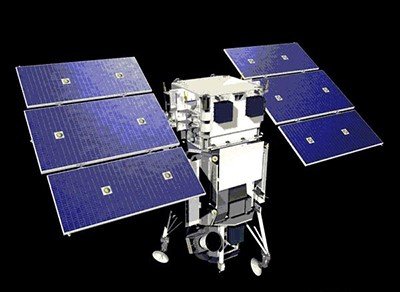
WorldView-1 satellite sensor was successfully launched from Vandenberg Air Force Base, California, U.S.A., at 11:35 Hrs Pacific Daylight Time (PDT) on September 18th, 2007. Watch video of WorldView-1 satellite launch. The WorldView-1 offers a high-capacity, panchromatic imaging system which features 0.50m resolution imagery.
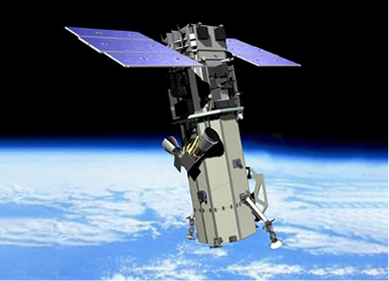
(0.50m)
VANTOR’s WorldView-2 satellite sensor, launched October 8, 2009, provides 0.46m panchromatic (B&W) mono and stereo satellite image data.
The WorldView-2 sensor provides a high-resolution panchromatic band and eight (8) multispectral bands; four (4) standard colors (red, green, blue, and near-infrared 1) and four (4) new bands (coastal, yellow, red edge, and near-infrared 2), full-color images for enhanced spectral analysis, mineral mapping, wildlife monitoring, land-use planning, disaster relief, defense, and climate change.
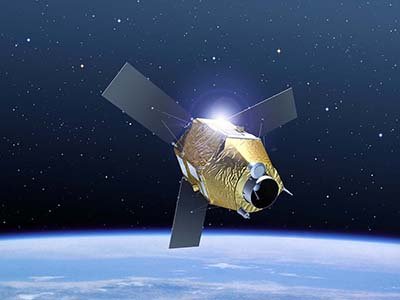
(0.50m)
AIRBUS Defence & Space Pleiades-1A satellite sensor was successfully launched on December 16, 2011, and provides 0.5m high resolution satellite image data. Watch video of Pleiades-1A satellite launch.
The Pleiades-1A satellite is capable of providing orthorectified color data at 0.5-meter resolution (roughly comparable to GeoEye-1) and revisiting any point on Earth as it covers a total of 1 million square kilometers (approximately 386,102 square miles) daily. Perhaps most importantly, Pleiades-1A is capable of acquiring high-resolution stereo imagery in just one pass and can accommodate large areas (up to 1,000 km x 1,000 km).
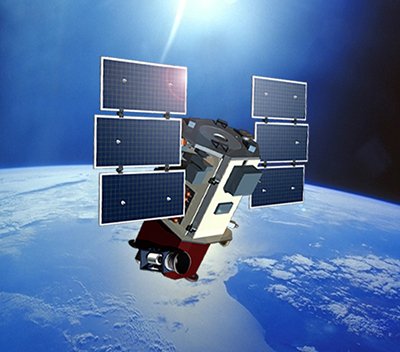
(0.65m) - Decommissioned
VANTOR’s QuickBird satellite sensor was successfully launched on October 18, 2001, at Vandenberg Air Force Base, California, USA.
Using a state-of-the-art BGIS 2000 sensor (PDF), QuickBird satellite collected image data to 0.65m pixel resolution degree of detail. This satellite was an excellent source of environmental data useful for analyses of changes in land usage, agriculture, and forest climates. QuickBird’s imaging capabilities had applied to a host of industries, including oil and gas exploration and production (E&P), engineering and construction and environmental studies.
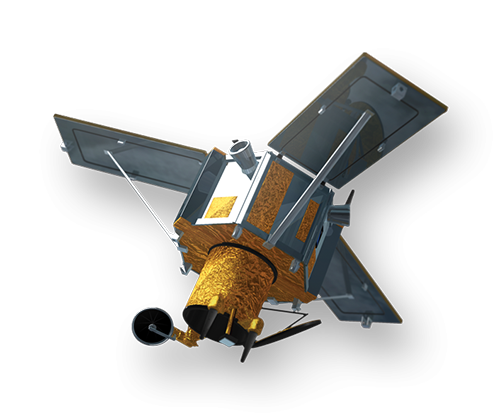
(0.80m) - Decommissioned
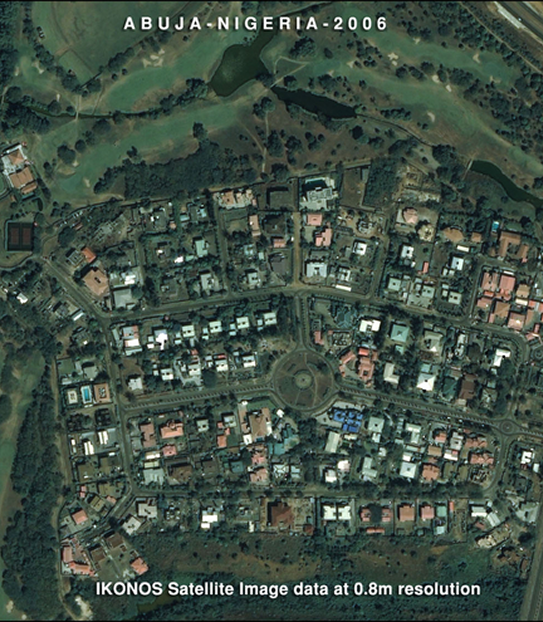
The IKONOS satellite sensor was successfully launched as the first commercially available high-resolution satellite sensor on September 24, 1999, at Vandenberg Air Force Base, California, USA. The IKONOS satellite sensor was decommissioned by DigitalGlobe on March 31, 2015.
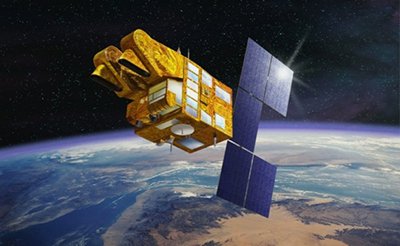
(2.5m/5m) - Decommissioned
The SPOT-5 satellite sensor has been decommissioned as of March 31, 2015. SPOT-5 was successfully placed into orbit by an Ariane 4 from the Guiana Space Centre in Kourou during the night of 3 to 4 May 2002. Archived SPOT-5 Satellite Imagery will remain available.
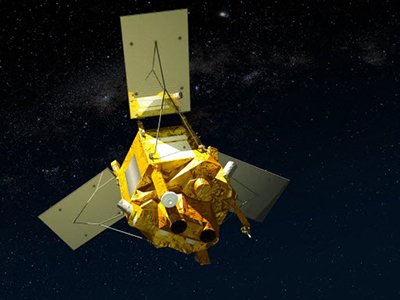
(1.5m)
SPOT-6 satellite sensor built by AIRBUS Defence & Space was successfully launched on September 9, 2012, by a PSLV launcher from the Satish Dhawan Space Center in India. Watch video of SPOT-6 the satellite launch.
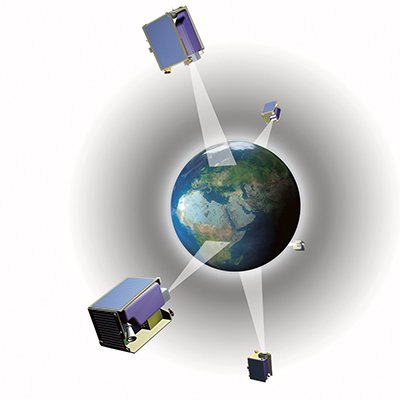
(5m)
The five (5) RapidEye satellite sensors were successfully launched from the DNEPR-1 Rocket on August 29th, 2008, at Baikonur Cosmodrome in Kazakhstan. RapidEye was built by MacDonald Dettwiler, Ltd. (MDA) and will offer customers a data source containing an unrivaled combination of large-area coverage, frequent revisit intervals, high-resolution, and multispectral capabilities.
After 12 years of operation, Planet decommissioned the RapidEye EO satellite constellation in April 2020.
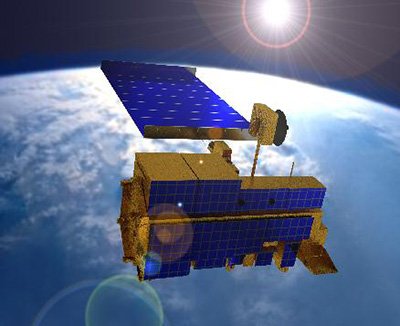
(15m)
ASTER satellite sensor is one of the five state-of-the-art instrument sensor systems on-board the Terra satellite that was launched on December 18, 1999, at Vandenberg Air Force Base, California, USA.
ASTER is a 15-meter, 14 band multispectral resolution instrument. It can be used for land cover and change detection, calibration, validation, and land surface studies.
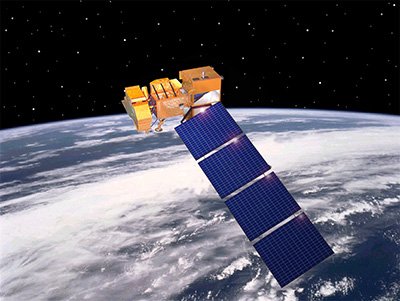
(15m)
The Landsat 7 ETM+ satellite sensor was successfully launched from the Vandenburg Air Force Base on April 15, 1999. Landsat 7 satellite is equipped with Enhanced Thematic Mapper Plus (ETM+), the successor of TM. The observation bands are essentially the same seven bands as TM, and the newly added panchromatic band 8, with a high resolution of 15-meters was added. An instrument malfunction occurred on May 31, 2003, with the result that all Landsat 7 scenes acquired since July 14, 2003, have been collected in “SLC-off” mode.
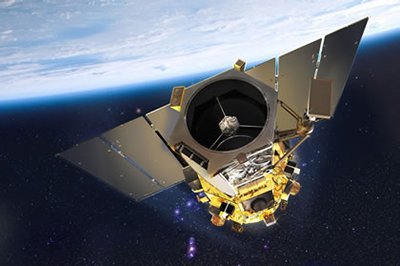
(0.5m)
The GeoEye-1 satellite sensor was successfully launched on September 6, 2008. The satellite, which was launched at Vanderberg Air Force Base, California, provides a resolution of 0.46-meters. Watch a video of GeoEye-1 satellite launch. GeoEye-1 is capable of acquiring image data at 0.50-meter panchromatic (B&W) and 1.84-meter multispectral resolution. It also features a revisit time of fewer than three days, as well as the ability to locate an object within just three meters of its physical location.
© AIRBUS
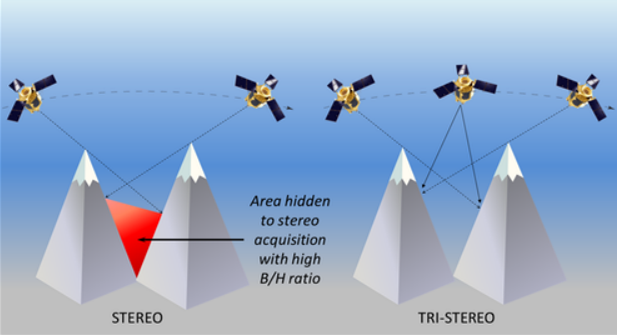
TRI-STEREO
STANDARD STEREO VERSUS TRI-STEREO
It’s important to emphasize that these Satellite sensors can acquire standard Stereo (2 scenes) or Tri-Stereo (3 scenes) satellite imagery to produce high-resolution 50cm 3D Digital Elevation Models (DEMs):
Satellite Imaging Corporation Gallery
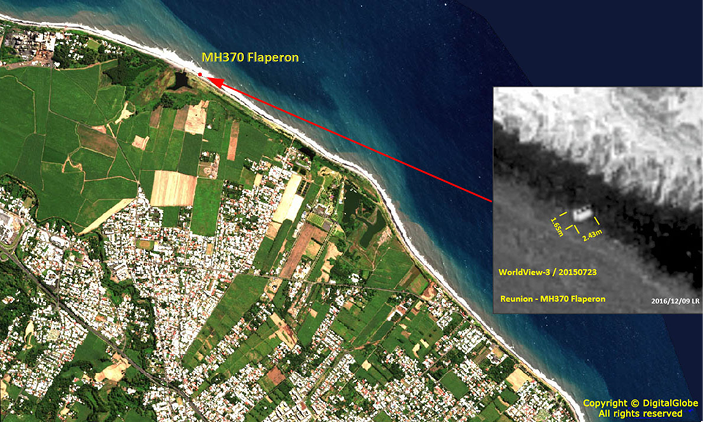
- DEM / 3D terrain visualizations
Satellite Imaging mosaics
- DEM / 3D terrain visualizations
Satellite Imaging mosaics
- DEM / 3D terrain visualizations
Satellite Imaging mosaics
Satellite Imaging Corporation Interview
WHY CHOOSE
Satellite Imaging Corporation
That SIC has decades of experience (founded 2001). Crunchbase
Their mission: to provide geospatial intelligence via satellite imagery.
Mention of their technical capability: DEMs, orthorectification, GIS integration.
Global Coverage & High Resolution
emphasize satellite platforms, resolution capabilities.
Advanced Processing & Analytics
highlight AI / ML for change detection, feature extraction.
3D Terrain & DEM Modeling
generating digital elevation models, 3D mapping.
FAQ’S
Frequently Asked Questions
How to find Geographic Coordinates in Google maps?
To find geographic coordinates in Google Maps, you can follow these steps:
Open Google Maps in your web browser or on your mobile device.
Search for the location you want to find the geographic coordinates for by entering the address, landmark, or name of the place in the search bar at the top of the page.
Once the location is displayed on the map, right-click (or long-press on mobile) the exact point on the map where you want to find the coordinates. This will open a small menu.
In the menu that appears, click on “What’s here?” or “What’s here? – Coordinates” option. On mobile devices, you may need to tap on the location marker first to reveal the menu options.
A small information box will appear at the bottom of the screen, displaying the latitude and longitude coordinates of the selected point. The coordinates will be shown in decimal degrees format.
You can click on the coordinates in the information box to expand it and see the coordinates in different formats, such as degrees, minutes, and seconds (DMS) or Universal Transverse Mercator (UTM) format.
How to Create a KML File in Google Earth?
To create a KML (Keyhole Markup Language) file in Google Earth, you can follow these steps:
Download Google Earth Pro and Open on your computer.
Navigate to the location or area you want to create a KML file for by using the search bar, zooming in/out, and panning on the map.
Customize the view and layers in Google Earth Pro to include the specific data or elements you want to include in your KML file. This can include placemarks, paths, polygons, overlays, images, and more.
Once you have set up the desired view and layers, go to the “Add” menu at the top of the screen and select the type of element you want to add (e.g., placemark, path, polygon, image overlay).
Follow the prompts to add the specific element and provide the necessary information, such as location coordinates, name, description, and any additional properties or styling options.
Repeat the previous step if you want to add more elements to your KML file.
After adding all the desired elements, go to the “File” menu and select “Save Place As.”
In the “Save Place As” dialog box, choose a location on your computer where you want to save the KML file.
Specify the name of the KML file, ensuring it has the .kml extension (e.g., myfile.kmL), you may need to select KML as GoogleEarth defaults to KMZ formats.
Click the “Save” button to save the KMZ file to the specified location on your computer.
How To Order Commercial Satellite Maps?
Ordering commercial high-resolution and medium-resolution satellite maps process:
Identify your requirements: Determine the specific needs for the satellite maps, including the desired resolution, geographic coverage, acquisition date, and any additional specifications such as spectral bands or cloud cover constraints.
Contact Us: Reach out to us to inquire about our imaging product and services. Provide us with the details of your requirements, including the area of interest, resolution, and any other specifications.
If there is high urgency for imagery, please let us know that this is a time sensitive project. Any project deadlines should be included with your initial contact.
Request a quote: Ask for a formal quote for the satellite maps you need. The quote should include information such as the cost, delivery timeline, licensing terms, and any additional services like data processing or analysis.
Review the quote: Evaluate the quote provided by us and if needed, we can negotiate the terms, pricing, or any specific requirements that may not be fully covered.
Confirm the order: Once you are satisfied with the quote and have reached an agreement, confirm your order. We will guide you through the necessary steps for payment and delivery.
Receive the satellite maps: After the order is confirmed and payment is processed, you will receive the satellite map data in the specified format. This may include downloading the data from a secure portal or receiving physical media, depending on delivery method.
Utilize the satellite maps: With the satellite maps that you receive, you can utilize it for your intended purposes, such as GIS data, 3D terrain maps, disaster, geospatial data, and other applications as needed.
What Are Satellite Imagery Raw Files?
Satellite map raw files refer to the unprocessed and unedited data captured by satellite sensors. These files contain the raw data received by the satellite sensors, including the reflected or emitted electromagnetic radiation from the Earth’s surface.
Satellite map raw files typically come in specialized formats specific to each satellite sensor or provider. These formats may include formats like GeoTIFF (georeferenced Tagged Image File Format) or ENVI (Environment for Visualizing Images). The raw files preserve the original sensor readings, which can include various spectral bands, radiometric information, and geometric parameters.
Raw files require processing to convert them into usable formats, such as georeferenced images or digital elevation model(DEM). Processing steps may involve radiometric and geometric corrections, atmospheric compensation, calibration, orthorectification, and mosaicking, among others.
Once processed, raw files can provide valuable information for various GIS data applications, including 3D terrain maps, agriculture production maps, vegetation maps, and disaster maps.
How To Download Satellite Maps in FTP
To download satellite maps from an FTP (File Transfer Protocol) server, you can follow these general steps:
Obtain the FTP server information: Get the FTP server details from the satellite maps provider or the source you are accessing. This includes the FTP server address, username, password, and potentially the directory path to the imagery files.
Choose an FTP client: Select an FTP client software or application that allows you to connect to the FTP server and perform file transfers. Some popular options include FileZilla, WinSCP, Cyberduck, or the built-in FTP functionality of certain web browsers.
If you are unable to download an FTP client due to software locks, Windows has a built in FTP Protocol that can be accessed by copying the URL of the FTP server in your Windows File Explorer.
Depending on the method to connect to the FTP, you will need credentials including a Username and Password to access these file.
Most FTP clients will allow you to Copy and Paste or Drag and Drop the files from the client window to your local files.
Remember to comply with any terms and conditions associated with the satellite map data, including usage restrictions, licensing agreements, and any attribution requirements specified by the provider.
For any other questions or for a consultation, please contact us.
Ready to get started?
Contact us for a custom imagery solution or request a quote
TESTIMONIALS
Stories & Experiences
Lorem ipsum dolor sit amet, consectetur adipiscing elit, sed do eiusmod tempor incididunt ut labore et dolore magna aliqua. Ut enim ad minim veniam, quis nostrud exercitation. .

Sarah Jones
Lorem ipsum dolor sit amet, consectetur adipiscing elit, sed do eiusmod tempor incididunt ut labore et dolore magna aliqua.

George Tarburton Jr.
Lorem ipsum dolor sit amet, consectetur adipiscing elit, sed do eiusmod tempor incididunt ut labore et dolore magna aliqua. Lorem ipsum dolor sit am

Jason Boothe
Lorem ipsum dolor sit amet, consectetur adipiscing elit, sed do eiusmod tempor incididunt ut labore et dolore magna aliqua.
BLOGS
Satellite Imaging Blog
Lorem ipsum dolor sit amet, consectetur adipiscing elit, sed do eiusmod tempor incididunt ut labore et dolore magna aliqua. Ut enim ad minim veniam, quis nostrud exercitation.
Discover what's possible. Get a complimentary consultation today.
Lorem ipsum dolor sit amet, consectetur adipiscing elit, sed do eiusmod tempor incididunt ut labore et dolore magna aliqua. Ut enim ad minim veniam, quis nostrud exercitation.
Downloadable PDFs about satellite sensors, DEMs, processing pipelines.
Discover what's possible. Get a complimentary consultation today.
Lorem ipsum dolor sit amet, consectetur adipiscing elit, sed do eiusmod tempor incididunt ut labore et dolore magna aliqua. Ut enim ad minim veniam, quis nostrud exercitation.
Downloadable PDFs about satellite sensors, DEMs, processing pipelines.
Discover what's possible. Get a complimentary consultation today.
Lorem ipsum dolor sit amet, consectetur adipiscing elit, sed do eiusmod tempor incididunt ut labore et dolore magna aliqua. Ut enim ad minim veniam, quis nostrud exercitation.
Downloadable PDFs about satellite sensors, DEMs, processing pipelines.
Discover what's possible. Get a complimentary consultation today.
Lorem ipsum dolor sit amet, consectetur adipiscing elit, sed do eiusmod tempor incididunt ut labore et dolore magna aliqua. Ut enim ad minim veniam, quis nostrud exercitation.
Downloadable PDFs about satellite sensors, DEMs, processing pipelines.
Discover what's possible. Get a complimentary consultation today.
Lorem ipsum dolor sit amet, consectetur adipiscing elit, sed do eiusmod tempor incididunt ut labore et dolore magna aliqua. Ut enim ad minim veniam, quis nostrud exercitation.
Downloadable PDFs about satellite sensors, DEMs, processing pipelines.