Orthorectification

Discover what’s possible.

Get a complimentary consultation today.

About Orthorectification

Remote sensing satellite and aerial imagery play an important role in Geospatial mapping by acquiring image data acquisition and visualization that can produce super GIS maps for many applications requiring precise and accurate data. Image data can provide a solid visual effect and is able to put spatial concepts into perspective when viewing or analyzing the data. In addition, image data can provide a basis for gathering spatial information to produce a GIS mapping environment. Features that can be extracted from imagery such as roads, vegetation, infrastructure, bridges, pipeline, and hydrology can be extracted. The image data must be processed to remove distortion to set the precise location of an area. This process is called orthorectification. Without this process, you would not be able to make direct and accurate measurements of distances, angles, positions, and areas.

What is Orthorectification?

The topographical variations in the surface of the earth and the tilt of the satellite or aerial sensor can affect the distance with which features on the satellite or aerial image are displayed. The more topographically diverse the landscape, the more distortion inherent in the image.

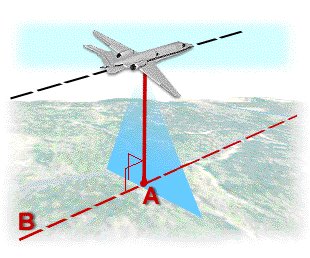
Image data acquired by satellite or aircraft are affected by a systematic sensor and platform-induced geometry errors, which introduce terrain distortions when the sensor is not pointing directly at the Nadir location of the sensor.
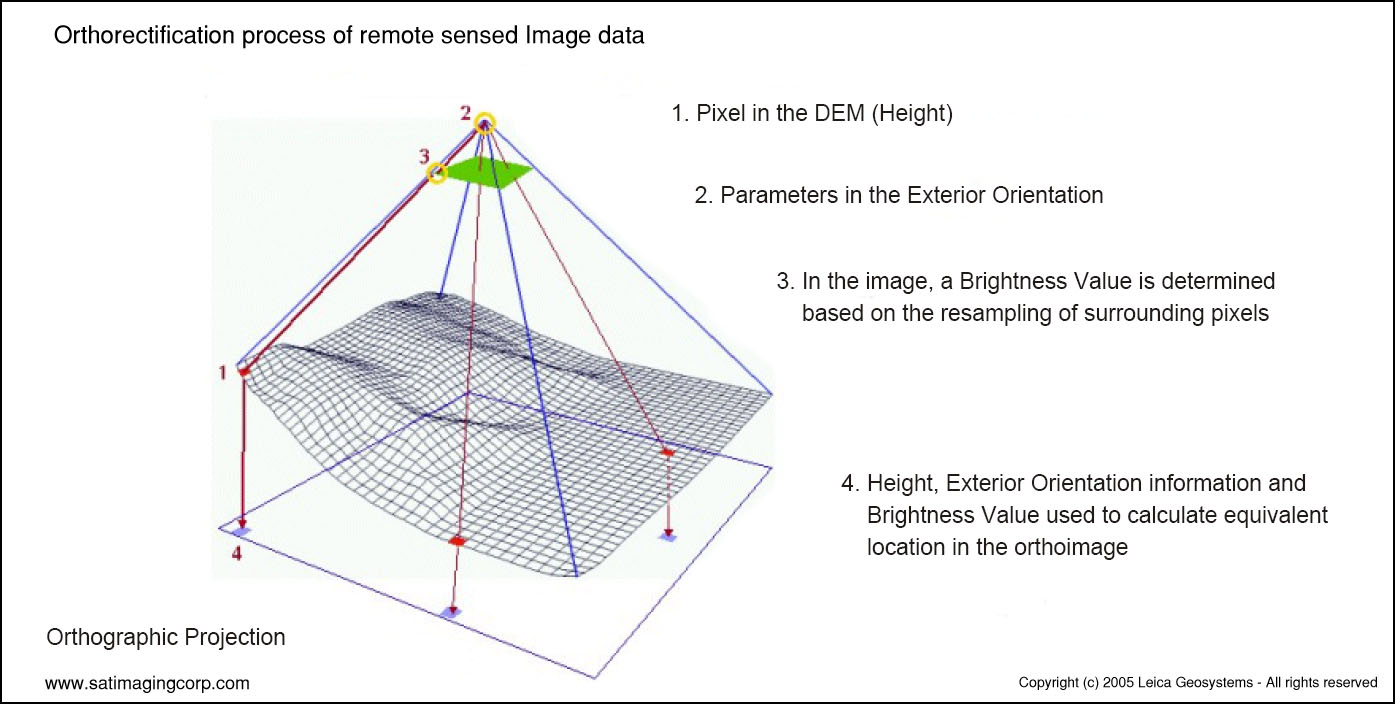
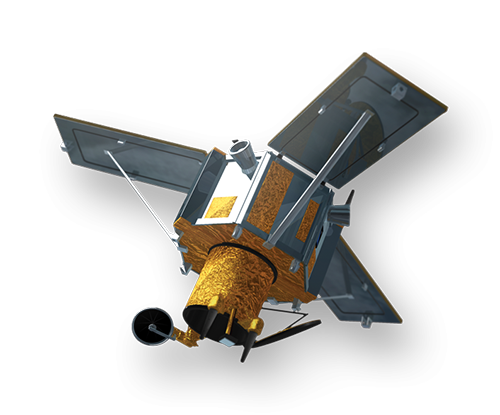
Terrain displacement can be hundreds of meters. For example, if the IKONOS satellite sensor acquires satellite image data over an area with a kilometer of vertical relief, with the sensor having an elevation angle of 60° (30° from Nadir), the image produced will have nearly 600 meters of terrain displacement. Additional terrain displacement can result from errors in setting the reference elevation. Low elevation angles of images, imperfect terrain models, variability of sensor azimuth, and elevation angles within an image limit accuracy potential if image orthorectification is attempted. For this reason, when new high resolution image data is acquired over rough terrain, high-elevation angles of the sensor is required.

A=Nadir     B=Nadir Line
Digital Elevation Model (DEM)

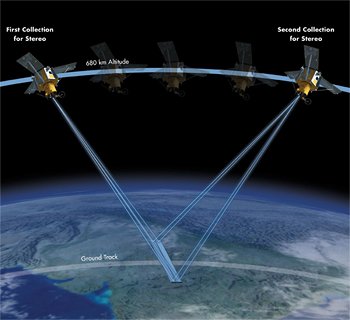
To accurately remove the image distortions, a digital elevation model (DEM) is used to perform image orthorectification. The required DEM is generated by feature extraction from high-resolution stereo satellite imagery.

For many international products where DEMs are not available with a posting interval of 90m, Satellite Imaging Corporation (SIC) utilizes the Shuttle Radar Topography Mission (SRTM) 90m DEM data set for the orthorectification of satellite image data. When higher mapping accuracy standards are required the DEM is extracted from existing topographic maps at an acceptable scale or acquired by stereo satellite image data providing a DEM posting and accuracies is standard with high-resolution stereo satellite sensors. At this accuracy, standard GPS derived ground control points (GCPs) are required. Other remote sensing techniques are also utilized, such as radar interferometry or LiDAR.

SIC performs the orthorectification of images of environmental, geological, topographic, or any source maps that are used in a GIS mapping environment.

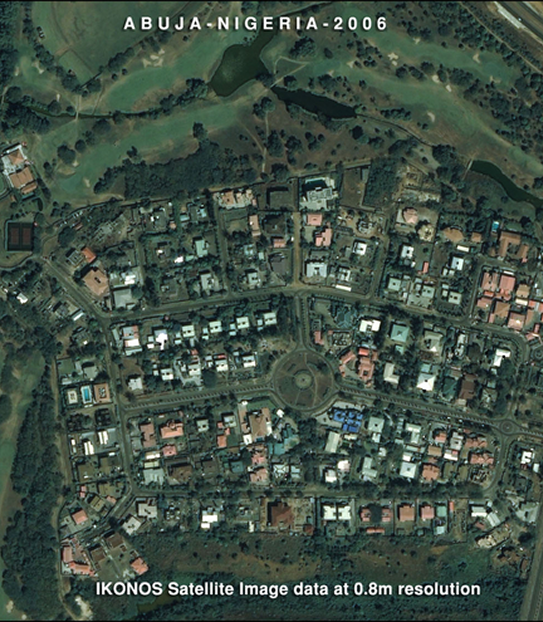
IKONOS (0.8m) Satellite Image Orthorectification

Click on image to view Orthorectification animation
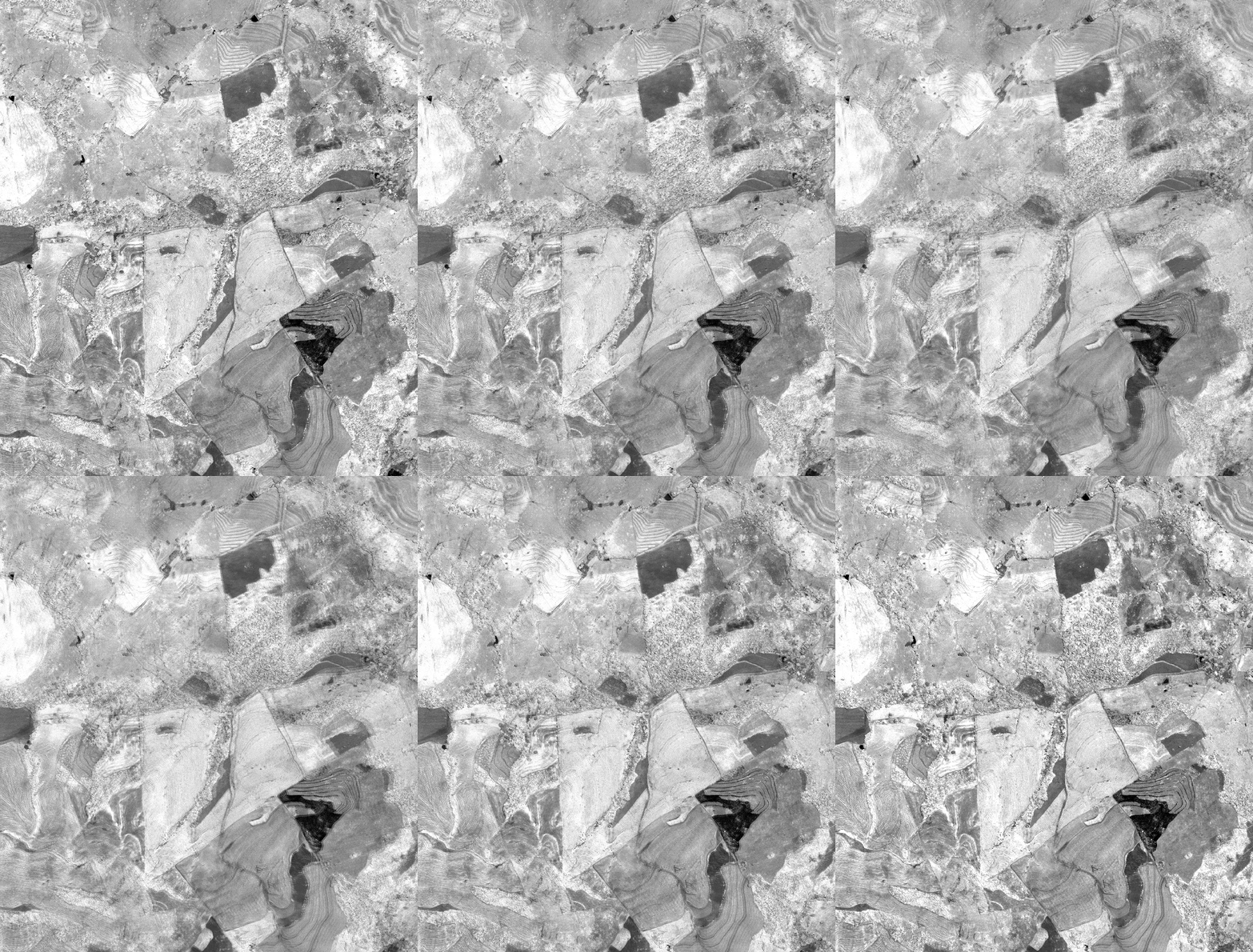
Copyright © MAXAR/processed by Satellite Imaging Corporation. All rights reserved.

Consultancy

Ongoing Satellite remote sensing and GIS consultancy services are provided to our clients, including the set-up of reliable source coordinate databases in support of computerized mapping, exploration, and development of projects around the world and to clients implementing AI, ML, Computer Vision (CV), or GIS management systems utilizing a variety of source data. For more information or for a consultation, please contact us.

For more information on any of our products and services or for a consultation, please contact us.
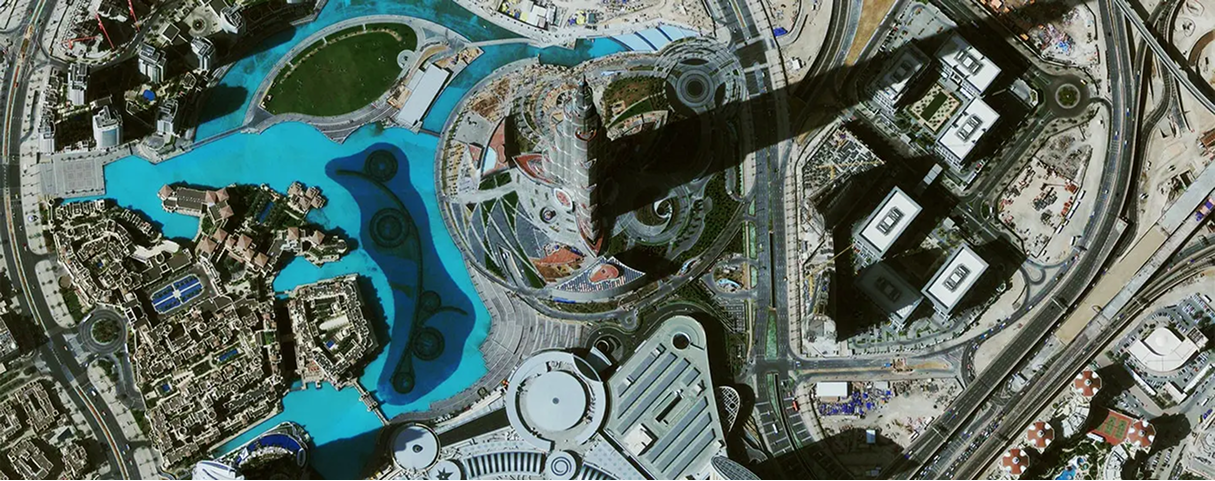
services include

Our services include:

Geographic Information Systems

Satellite Image Processing

3D Digital Elevation Models (DEMs)

ATCOR (Atmospheric and Topographic Correction)

ATCOMP (Atmospheric Compensation)

3D Digital Terrain Models (DTMs)

Orthorectification

Mosaicing

Feature Extraction

Satellite Sensor

IMAGING Corporation Satellite Sensors

Ready to get started?

Contact us for a custom imagery solution or request a quote

TESTIMONIALS

Stories & Experiences

Lorem ipsum dolor sit amet, consectetur adipiscing elit, sed do eiusmod tempor incididunt ut labore et dolore magna aliqua. Ut enim ad minim veniam, quis nostrud exercitation. .

FAQ’S

Frequently Asked Questions

How to find Geographic Coordinates in Google maps?

To find geographic coordinates in Google Maps, you can follow these steps:

  1. Open Google Maps in your web browser or on your mobile device.

  2. Search for the location you want to find the geographic coordinates for by entering the address, landmark, or name of the place in the search bar at the top of the page.

  3. Once the location is displayed on the map, right-click (or long-press on mobile) the exact point on the map where you want to find the coordinates. This will open a small menu.

  4. In the menu that appears, click on “What’s here?” or “What’s here? – Coordinates” option. On mobile devices, you may need to tap on the location marker first to reveal the menu options.

  5. A small information box will appear at the bottom of the screen, displaying the latitude and longitude coordinates of the selected point. The coordinates will be shown in decimal degrees format.

  6. You can click on the coordinates in the information box to expand it and see the coordinates in different formats, such as degrees, minutes, and seconds (DMS) or Universal Transverse Mercator (UTM) format.

To create a KML (Keyhole Markup Language) file in Google Earth, you can follow these steps:

  1. Download Google Earth Pro and Open on your computer.

  2. Navigate to the location or area you want to create a KML file for by using the search bar, zooming in/out, and panning on the map.

  3. Customize the view and layers in Google Earth Pro to include the specific data or elements you want to include in your KML file. This can include placemarks, paths, polygons, overlays, images, and more.

  4. Once you have set up the desired view and layers, go to the “Add” menu at the top of the screen and select the type of element you want to add (e.g., placemark, path, polygon, image overlay).

  5. Follow the prompts to add the specific element and provide the necessary information, such as location coordinates, name, description, and any additional properties or styling options.

  6. Repeat the previous step if you want to add more elements to your KML file.

  7. After adding all the desired elements, go to the “File” menu and select “Save Place As.”

  8. In the “Save Place As” dialog box, choose a location on your computer where you want to save the KML file.

  9. Specify the name of the KML file, ensuring it has the .kml extension (e.g., myfile.kmL), you may need to select KML as GoogleEarth defaults to KMZ formats.

  10.  Click the “Save” button to save the KMZ file to the specified location on your computer.

Ordering commercial high-resolution and medium-resolution satellite maps process:

  1. Identify your requirements: Determine the specific needs for the satellite maps, including the desired resolution, geographic coverage, acquisition date, and any additional specifications such as spectral bands or cloud cover constraints.

  2. Contact Us: Reach out to us to inquire about our imaging product and services. Provide us with the details of your requirements, including the area of interest, resolution, and any other specifications.

  3. If there is high urgency for imagery, please let us know that this is a time sensitive project. Any project deadlines should be included with your initial contact.

  4. Request a quote: Ask for a formal quote for the satellite maps you need. The quote should include information such as the cost, delivery timeline, licensing terms, and any additional services like data processing or analysis.

  5. Review the quote: Evaluate the quote provided by us and if needed, we can negotiate the terms, pricing, or any specific requirements that may not be fully covered.

  6. Confirm the order: Once you are satisfied with the quote and have reached an agreement, confirm your order. We will guide you through the necessary steps for payment and delivery.

  7. Receive the satellite maps: After the order is confirmed and payment is processed, you will receive the satellite map data in the specified format. This may include downloading the data from a secure portal or receiving physical media, depending on delivery method.

  8. Utilize the satellite maps: With the satellite maps that you receive, you can utilize it for your intended purposes, such as GIS data, 3D terrain maps, disaster, geospatial data, and other applications as needed.

Satellite map raw files refer to the unprocessed and unedited data captured by satellite sensors. These files contain the raw data received by the satellite sensors, including the reflected or emitted electromagnetic radiation from the Earth’s surface.

Satellite map raw files typically come in specialized formats specific to each satellite sensor or provider. These formats may include formats like GeoTIFF (georeferenced Tagged Image File Format) or ENVI (Environment for Visualizing Images). The raw files preserve the original sensor readings, which can include various spectral bands, radiometric information, and geometric parameters.

Raw files require processing to convert them into usable formats, such as georeferenced images or digital elevation model(DEM). Processing steps may involve radiometric and geometric corrections, atmospheric compensation, calibration, orthorectification, and mosaicking, among others.

Once processed, raw files can provide valuable information for various GIS data applications, including 3D terrain maps, agriculture production maps, vegetation maps, and disaster maps.

To download satellite maps from an FTP (File Transfer Protocol) server, you can follow these general steps:

  1. Obtain the FTP server information: Get the FTP server details from the satellite maps provider or the source you are accessing. This includes the FTP server address, username, password, and potentially the directory path to the imagery files.

  2. Choose an FTP client: Select an FTP client software or application that allows you to connect to the FTP server and perform file transfers. Some popular options include FileZilla, WinSCP, Cyberduck, or the built-in FTP functionality of certain web browsers.

  3. If you are unable to download an FTP client due to software locks, Windows has a built in FTP Protocol that can be accessed by copying the URL of the FTP server in your Windows File Explorer.

  4. Depending on the method to connect to the FTP, you will need credentials including a Username and Password to access these file.

  5. Most FTP clients will allow you to Copy and Paste or Drag and Drop the files from the client window to your local files.

Remember to comply with any terms and conditions associated with the satellite map data, including usage restrictions, licensing agreements, and any attribution requirements specified by the provider.

For any other questions or for a consultation, please contact us.
Scroll to Top